
How to Edit a Document?
COMPREHENSIVE GUIDE TO EDITOR SCREEN OPTIONS
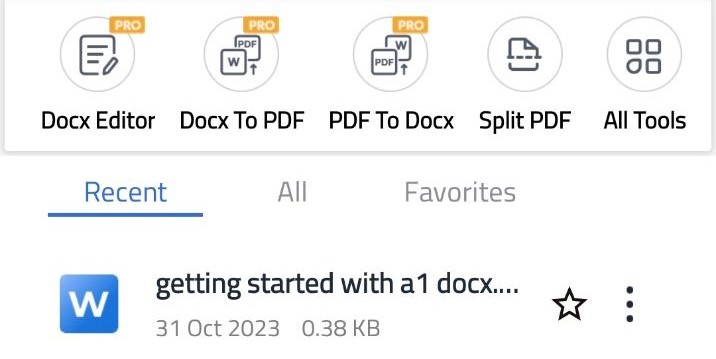
Step 1 - Choose a Document by clicking on it from Home Screen to make Changes
Step 2 - We Provide a range of Editing options in the Top-bar for our users to carry out necessary Editing tasks easily on the go. We will cover all points in detail one by one
a.) FILE -
1. Save : Before proceeding to save the file, you must make some changes in order to create a new file
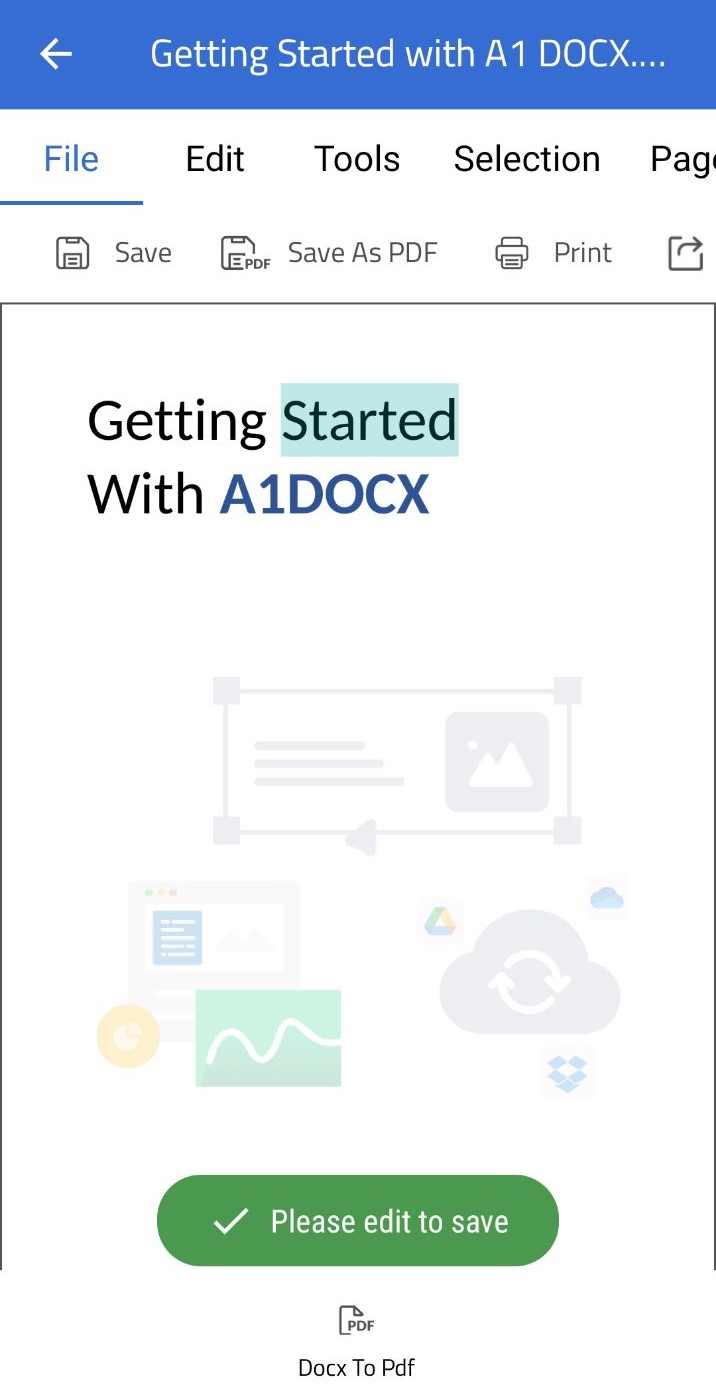
2. Save as PDF
: It is the most useful option for sharing your documents in PDF format , and it's easier done than said.
- Press "Save as PDF" -> choose your file location ( I chose Documents by clicking on it) -> press Save -> enter the name you want for the document -> PDF file saved
3. Print : Provides a preview screen for you to make suitable changes.
4. Share : Provides an option to share edited file either as a document or a link to intended receiver
b.) EDIT
NOTE - "Double tap" on screen to select content item for editing.
NOTE - "Zoom IN, Zoom OUT" using thumb and index finger for better accessibilty.
- Place the cursor wherever you want to make changes and select fonts, text size, bold, italics or underline.
- Use left most curved arrow to undo recent change made
c.) TOOLS
Docx to PDF - Directly converts your file to PDF format
- Press "Save as PDF" -> choose your file location ( I chose Documents by clicking on it) -> press Save -> enter the name you want for the document -> PDF file saved
d.) SELECTION
- No need to type multiple lines repeatedly, simply double tap on text, press "Copy text" and place the cursor wherever you want to copy it and simply paste.
- Double tap on content to select, press Delete to remove it from the file
- Overlay provides a liner to you to select images, paragraphs etc to edit , click on "overlay" button to exit overlay mode
- use deselect button to remove selected portion of content while exploring Overlay option.
e.) PAGES
Show pages - shows entire index of pages in the document on the left hand side, you can briefly view the contents in the document, and also select any particular page in the file, without scrolling down.
press "hide pages" to go to default view
first page - brings out the first page of the document
last page - brings out the last page of the document
f.) ANNOTATE -
- press "Draw" option for freehand drawing in the document , press again on "Draw" button to exit drawing mode
- Press "Delete Selection" to remove content you don't want in the document
- There is also an option to choose different line colour and line thickness for freehand drawing
g.) SCALE -
Scale up = Zooms IN document
Scale down = Zooms Out document
Scroll up = Scrolls up the file without manual scrolling
Scroll down = Scrolls down the file without manual scrolling
h.) ORGANIZE -
- provides option to add labels to your important files , to make easier for you to arrange your important documents
- you can also add your custom "label" simply by clicking "Add more"
i.) FIND
type the text you want to search in the search box, the ">" icon takes you to next entry found ( if in case multiple matches are found) , and "<" icon takes you to previous entry found ( if in case multiple matches are found)